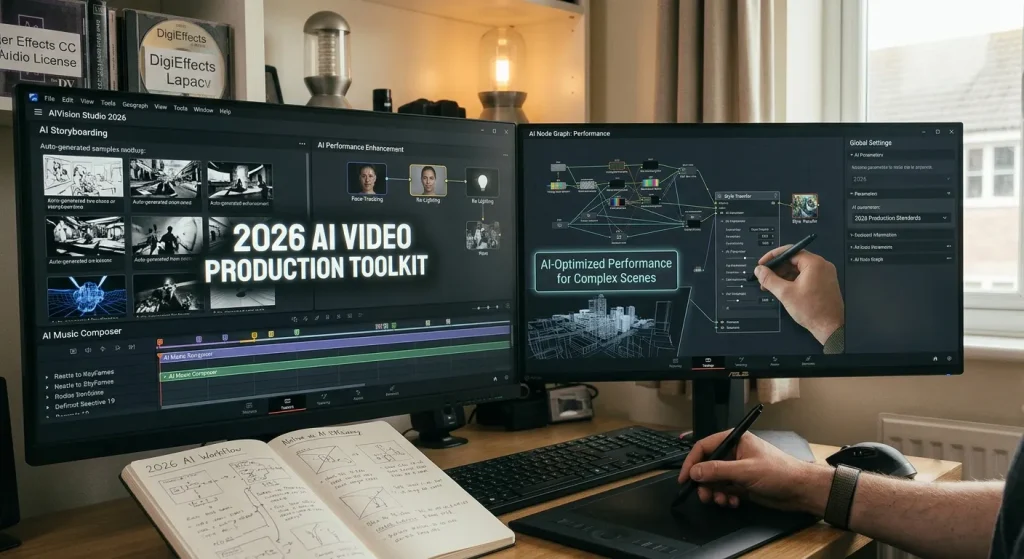
In 2026, AI video production tools split into three main categories: generative text-to-video models (Google Veo, Runway Gen-3, Kling 3.0, and OpenAI Sora), automated timeline editors (Loopdesk and Descript), and AI-assisted professional NLEs (DaVinci Resolve and Adobe Premiere Pro). These tools help editors generate B-roll, automate cuts, clean up audio, and process high-resolution timelines faster.
The Reality of AI Video Tools in 2026
If you edited video five years ago, your job was mostly manual. You trimmed clips on a timeline, masked elements frame by frame, keyed out green screens, and manually searched stock libraries for missing B-roll.
In 2026, the video landscape looks very different. AI video tools are no longer just novelties that make weird, distorted morphing clips. They have settled into practical, daily production workflows.
Creators, agency editors, and post-production studios use AI for specific, repetitive tasks:
- Generating custom B-roll shots that would cost thousands to film.
- Extending shot handles when a clip ends two seconds too early.
- Removing unwanted objects from moving shots without tracking manual masks.
- Editing long interviews by deleting sentences inside a text transcript.
- Auto-clipping 60-minute landscape podcasts into vertical shorts with dynamic captions.
Instead of replacing the editor, modern AI video tools act like specialized assistants. But with dozens of platforms competing for your monthly subscription, choosing the right stack can feel overwhelming.
Here is a practical breakdown of the best AI video production tools available in 2026, how they work, and where they fit into a real editing workflow.
The Three Main Categories of AI Video Software
To pick the right software, you first need to understand that “AI video tool” is an umbrella term. Software in this space generally falls into three distinct categories.
Category Primary Focus Key Examples Generative Models Creating new video frames from text, images, or seed videos Google Veo, Runway Gen-3, Kling 3.0, OpenAI Sora, Pika 2.0 Automated Editors Processing existing video, transcripts, and timeline automation Descript, Loopdesk, Opus Clip, VEED.io NLE Assistive AI Native plugins and engines for professional video editors DaVinci Neural Engine, Adobe Firefly Video, Topaz Video AI 1. Generative AI Video Generators
These tools build video frames from scratch using text prompts, static reference images, or seed videos. You use them when you need footage that does not exist in your shot list or stock libraries.
2. Text-Based and Agentic Video Editors
These platforms run inside your web browser or desktop editor. They process existing video files, generate transcripts, remove silences, and let you edit video clips by deleting words in a document or typing natural language prompts.
3. Native NLE Plugins and Assistive AI
These are built-in features inside non-linear editors like Adobe Premiere Pro, DaVinci Resolve, and Final Cut Pro. They focus on heavy lift jobs like smart object tracking, audio isolation, color matching, and upscaling.
Deep Dive: The Top Generative AI Video Generators
Generative video has advanced rapidly. Modern models maintain character consistency, respect real-world physics, and output clean 4K frames. Here are the leading platforms in 2026.
1. Google Veo
Google Veo has become a standard choice for enterprise teams, filmmakers, and agencies operating within Google Cloud or Gemini workflows.
Key Features
- Camera Movement Controls: Specify pan, tilt, zoom, and tracking speed directly in your text prompt.
- First and Last Frame Generation: Upload two static images, and Veo generates a smooth, logical video transition between them.
- Ingredient Mode: Upload product photos or character references, and Veo places those exact objects into new generated scenes.
- Commercial Safety: Integrated into Google Vertex AI with clear licensing and copyright protections for brand work.
Best For
High-end commercial work, brand assets, and studio teams that need clear billing and enterprise-grade security.
2. Runway (Gen-3 Alpha & Runway Turbo)
Runway remains one of the most complete creative spaces for video editors. While other platforms focus purely on prompt-to-video generation, Runway builds actual post-production tools around its AI models.
Key Features
- Motion Brush: Paint over specific areas of an image to control exactly which parts move and in what direction.
- Advanced Inpainting: Remove unwanted people or objects from moving video clips with temporal consistency.
- Multi-Motion Control: Assign different speed vectors to background elements and foreground subjects in a single generation.
- Director Mode: Fine-tune virtual focal lengths, camera angles, and lighting parameters.
Best For
Professional video editors, visual effects artists, and motion designers who want precise control over generative assets.
3. Kling AI (Kling 3.0)
Developed by Kuaishou, Kling has earned a reputation as one of the best value generative platforms in 2026. It handles complex physical interactions and human motion with impressive realism.
Key Features
- 10-Second Continuous Generations: Generates longer native clips without losing subject coherence.
- Physical Simulation: Water, cloth, smoke, and hair move according to realistic physical rules.
- Native Lip-Sync: Upload an audio file alongside a generated character, and Kling syncs mouth movements accurately.
- High-Res 4K Export: Sharp output without needing secondary upscaling software.
Best For
Creators on a budget who need realistic human motion and longer clip lengths without high per-second generation costs.
4. OpenAI Sora
OpenAI Sora was one of the earliest models to demonstrate complex scene understanding. In 2026, it remains a benchmark for cinematic lighting, atmospheric depth, and spatial awareness.
Key Features
- Cinematic Composition: Generates shots that look like they were lit and framed by an experienced cinematographer.
- Complex Multi-Subject Tracking: Maintains focus on multiple moving people or vehicles in a single shot.
- Environmental Consistency: Reflective surfaces, shadows, and weather effects match across the entire duration of the clip.
Best For
Concept artists, directors building pre-visualization storyboards, and high-budget narrative projects.
5. Pika (Pika 2.0)
Pika focuses on speed, social media formatting, and short-form content creation. It is built for creators who need quick turnaround times.
Key Features
- Rapid Generation Speeds: Most 10-second clips render in under 45 seconds.
- Pikaframes: Set multiple keyframe images to guide longer narrative shots.
- Built-in Effects Presets: Quickly add inflate, melt, or explode effects to images for viral social media clips.
- Native 9:16 Aspect Ratios: Optimized directly for TikTok, Instagram Reels, and YouTube Shorts.
Best For
Social media managers, solo creators, and meme accounts that value speed over deep cinematic control.
Deep Dive: Top AI Editors & Workflow Automation Tools
Generating new video is only half the battle. Once you have footage, you need to edit, polish, and package it. These tools automate the tedious parts of the editing process.
Platform Type Primary Function Ideal Application Long-Form Automation Scans raw footage and transcript to assemble rough cuts Long-form interviews, agency video production Text-Based Editors Uses transcription text to cut underlying video waveforms Podcast editing, spoken-word tutorials, presentations Short-Form Clippers Analyzes video hooks and reframes horizontal shots to 9:16 Repurposing content for TikTok, Shorts, and Reels 1. Descript
Descript changed how podcasters and interview editors approach post-production. Instead of cutting waveforms on a timeline, you edit video by editing text.
Key Features
- Transcript-Based Editing: Deleting a word or sentence in the generated script cuts the corresponding video frames automatically.
- Filler Word Removal: Identify and delete all instances of “um,” “uh,” and long pauses with one click.
- Studio Sound: AI voice enhancement that removes room echo and background noise while preserving natural voice dynamics.
- Eye Contact Correction: Adjusts the speaker’s eyes to look directly at the camera even if they were reading off a teleprompter.
Best For
Podcasters, educators, course creators, and talking-head video editors.
2. Loopdesk
Loopdesk is an agentic, browser-based AI video editor. Instead of just offering assistive tools, Loopdesk uses AI agents that execute complex editing instructions from plain text prompts.
Key Features
- Prompt-Driven Timeline Execution: Type “cut out silences, add lower thirds, and insert relevant B-roll,” and the AI executes the entire sequence.
- Automatic B-Roll Integration: Scans your transcript and automatically inserts context-aware B-roll graphics and stock footage.
- 4K Watermark-Free Export: Renders high-resolution video directly in the browser.
- Automated Sound Design: Generates matching sound effects and background music stems aligned to scene cuts.
Best For
Content teams and creators who want to automate the rough-cut phase of video production.
3. Opus Clip
Opus Clip specializes in one specific task: taking long-form horizontal videos (like podcasts, webinars, or long vlogs) and turning them into short vertical clips.
Key Features
- Virality Score: Analyzes long videos and highlights scenes with the strongest narrative hooks or emotional beats.
- Auto Speaker Tracking: Keeps active speakers centered in vertical 9:16 frames automatically.
- Dynamic Animated Captions: Generates color-coded, highlighted text overlays that match current social media trends.
- Batch Exporting: Turn a single 60-minute video into 15 vertical clips in a few minutes.
Best For
Repurposing long-form YouTube content, webinars, and podcast episodes into TikToks and Shorts.
4. VEED.io
VEED.io offers a light, browser-based editing suite packed with assistive AI tools. It is designed for quick marketing edits, social videos, and internal communications.
Key Features
- Auto-Subtitles & Translation: Generates captions in over 50 languages with high accuracy.
- AI Avatars & Text-to-Speech: Turn written scripts into video presentations using digital presenters.
- Screen and Webcam Recording: Record, edit, and add AI captions in one continuous browser session.
- Brand Kits: Save brand colors, logos, and fonts for quick application across marketing assets.
Best For
Marketing teams, HR departments, and small businesses producing daily social video content.
Pro NLE Integration: DaVinci Resolve & Adobe Creative Cloud
If you work on high-end films, commercials, or YouTube productions, you probably use traditional desktop non-linear editors (NLEs). Both Adobe and Blackmagic Design have integrated deep AI processing directly into their core software engines.
DaVinci Resolve (DaVinci Neural Engine)
Blackmagic Design has taken a performance-focused approach to AI. Rather than replacing the editor, the DaVinci Neural Engine speeds up technical tasks inside the Edit, Color, and Fusion pages.
AI Feature Real-World Use Case IntelliTrack Locks tracking points to moving objects for instant color grading Voice Isolation Cleans up harsh background noise on field recordings instantly Magic Mask 2.0 Isolates people or objects without drawing manual rotoscope masks Super Scale Upscales 1080p footage to crisp 4K using spatial machine learning Adobe Premiere Pro & After Effects
Adobe uses its Firefly model family to bring generative video directly onto the timeline.
- Generative Extend: Drag the edge of a video clip past its original end point, and Premiere Pro generates extra frames to fill a gap.
- Text-Based Editing: Select speech in the auto-generated transcript to cut clips on the timeline automatically.
- Generative B-Roll: Generate custom stock clips inside the project panel and drop them straight into your timeline sequence.
- Enhanced Speech: Clean up distorted audio recordings with a simple slider control.
Comparing the Best AI Video Tools in 2026
Here is a quick look at how these leading tools compare in terms of features, pricing, and overall value.
Tool Primary Use Case Standout Feature Pricing (2026) Promo / Discount Code Google Veo Enterprise Generative Video First/Last Frame Consistency $4.99 – $19.99/mo (Consumer) / Pay-per-sec (Vertex) Included with Google AI Pro Runway Gen-3 Creative Generative VFX Motion Brush & Region Control Free Trial / Standard $12/mo RUNWAY10 (10% Off) Kling 3.0 Realistic Physics & Motion 10-Second Native Generations Free Credits / Paid from $10/mo KLING20 (20% Off) OpenAI Sora Photorealistic Cinematic Shots Atmospheric & Physics Realism Included in ChatGPT Plus ($20/mo) N/A Pika 2.0 Fast Short-Form Social Video Ingredient Mode & Quick FX Free Tier / Standard $10/mo PIKA15 (15% Off) Descript Text-Based Podcast Editing Edit Video via Transcript Free / Hobbyist $16/mo DESCRIPT20 (20% Off) Loopdesk Agentic Full-Workflow Editing Prompt-Driven Timeline Cuts Creator Lite $15/mo LOOP15 (15% Off) Opus Clip Long-Form to Vertical Shorts Virality Score & Auto-Reframing Free Tier / Starter $15/mo OPUS10 (10% Off) VEED.io Web Marketing & Captions One-Click Subtitles & Avatars Free Tier / Pro $12/mo EFFECTS50 (50% Off) Practical Workflows: Combining AI Tools in Real Projects
No single AI tool handles every step of production perfectly. The most efficient video editors build hybrid workflows, using different tools for specific phases of a project.
Workflow 1: The YouTube Creator Pipeline
- Rough Assembly: Import raw talking-head footage into Descript. Delete filler words, silent gaps, and off-script rambles using the transcript.
- Generative B-Roll: When you talk about a concept you do not have footage for, open Runway or Google Veo. Generate a 5-second clip matching your exact scene description.
- Finishing & Audio: Export the timeline to DaVinci Resolve. Run Voice Isolation to clean up the vocal track, and apply a primary color grade.
- Repurposing: Export the finished YouTube video, drop it into Opus Clip, and extract five vertical shorts with dynamic captions for social media.
Workflow 2: The Commercial Agency Pipeline
- Pre-Visualization: Use OpenAI Sora or Kling 3.0 to generate video storyboards for client approval before filming.
- Production Editing: Edit main camera footage inside Adobe Premiere Pro.
- Generative Fixes: Use Generative Extend in Premiere Pro to stretch background plates that end too early for voiceover timing.
- VFX & Cleaning: Use Magic Mask in DaVinci Resolve or Runway’s inpainting tools to clone out unwanted street signs, logos, or microphone boom tips.
Hardware Considerations: System RAM and VRAM for AI Video
While cloud-based tools (like Veo, Runway, and VEED) run heavy processing on remote servers, local AI tools (like DaVinci Resolve’s Neural Engine or Topaz Video AI) rely heavily on your desktop hardware.
If you plan to process local AI video tasks on your computer, keep these hardware targets in mind:
Hardware Element Minimum Target Recommended Target Dedicated VRAM 8 GB (RTX 3070 / M2) 16 GB+ (RTX 4080+) System RAM 32 GB DDR4 / DDR5 64 GB DDR5 Storage SATA SSD NVMe PCIe 4.0 SSD Why VRAM Matters for Local AI Video
When your GPU executes AI tracking, upscale algorithms, or frame interpolation, it loads heavy neural network models directly into video memory (VRAM).
- If you run out of dedicated VRAM, Windows shifts data to Shared GPU Memory (which uses your system RAM).
- System RAM is significantly slower than dedicated GDDR6X VRAM. This causes local AI renders to slow down or throw “Out of Video Memory” errors.
If you edit 4K footage with local AI plugins regularly, aim for a graphics card with at least 12 GB to 16 GB of dedicated VRAM.
Frequently Asked Questions (FAQ)
Can AI completely edit a video from scratch?
Agentic tools like Loopdesk and InVideo AI can generate complete video drafts from prompts or scripts. However, for nuanced storytelling, precise pacing, and creative tone, human editors are still required to direct and refine the final cut.
Will generated AI video clips pass commercial copyright checks?
Platforms like Adobe Firefly and Google Veo (via Vertex AI) offer commercial safety guarantees because their models are trained on licensed stock footage or public domain data. Always check a tool’s terms of service before using generated assets in paid commercial campaigns.
Which AI video generator offers the most realistic human movement?
In 2026, Kling 3.0 and OpenAI Sora lead the industry in physical motion simulation, realistic lighting, and natural human movement.
Do I need a powerful computer to use AI video tools?
No. Cloud-based platforms like Runway, Google Veo, Pika, Descript, and VEED process video on remote cloud servers. You only need a stable internet connection and a standard web browser. You only need high-end hardware if you run local AI tools inside DaVinci Resolve or Premiere Pro.
How do I stop generative video tools from distorting faces and hands?
Use static reference photos with Ingredient Mode (in Veo) or Pikaframes (in Pika). Providing a high-quality source image gives the AI model an exact structural baseline, reducing distortions in complex features like eyes, hands, and logos.
Summary & Action Plan
AI video tools in 2026 are not about pushing a single button to generate a movie. They are about removing friction from post-production so you can focus on creative storytelling.
If you want to build a modern video editing workflow today:
- For missing assets: Use Google Veo or Runway Gen-3 to generate custom B-roll shots instead of spending hours searching stock libraries.
- For interview editing: Use Descript to trim silences and edit your timeline directly through a text transcript.
- For social media reach: Use Opus Clip to turn long-form videos into vertical short clips automatically.
- For final polish: Use DaVinci Resolve or Adobe Premiere Pro for GPU-accelerated voice isolation, object removal, and color finishing.
By picking the right tool for each step, you can cut your editing time in half while maintaining full creative control over your final export.
AI Video Production Tools in 2026: The Complete Guide