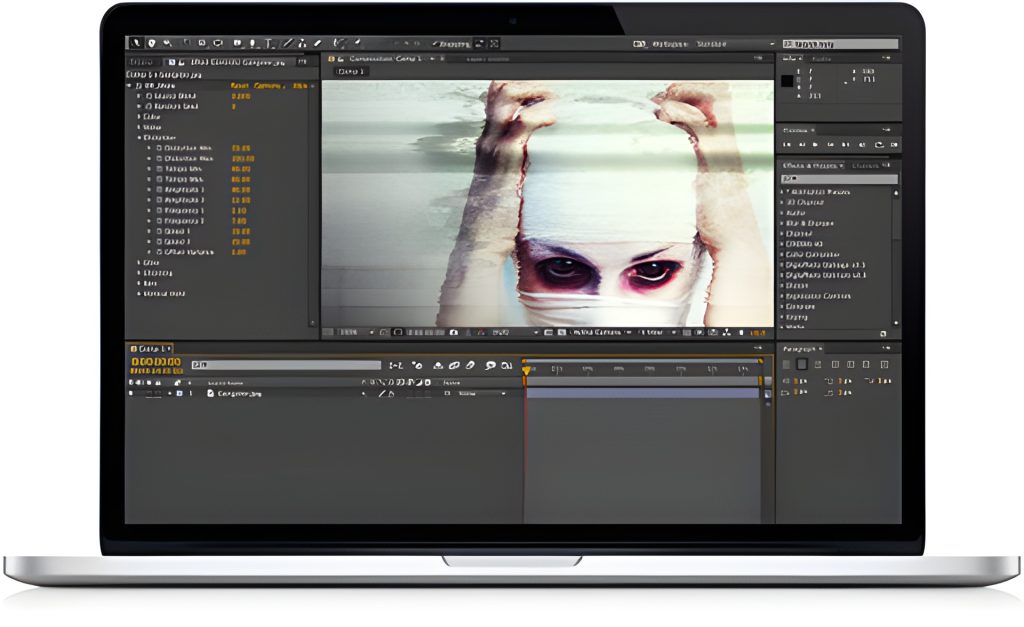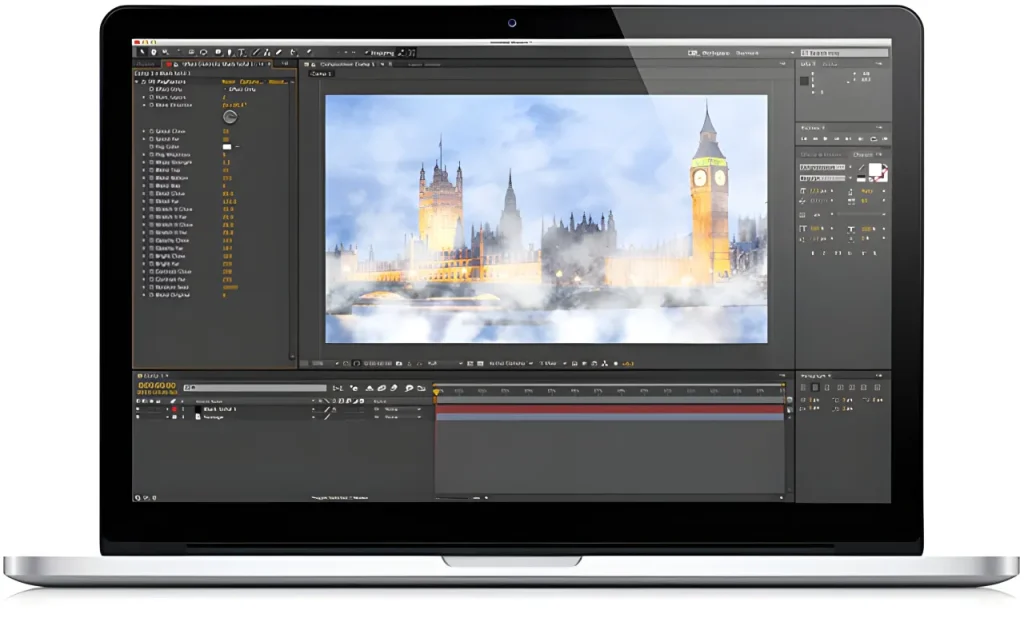
Digieffects Glow was a core lighting plugin included in the Delirium v2 suite, engineered for video editors, motion graphics artists, and compositors working in Adobe After Effects, Premiere Pro, and Final Cut Pro. Designed to generate organic optical blooms, atmospheric halos, and stylized light bursts, Digieffects Glow provided precision control over how light spills and interacts with source footage.
Unlike standard, generic blur-and-screen glow effects that wash out entire compositions, Digieffects Glow utilized an extraction-based blooming workflow. By isolating distinct highlights, color ranges, or alpha channels before applying diffusion math, artists could create subtle camera lens blooms or intense sci-fi illumination with surgical control.
⚡ Quick Summary: Digieffects Glow (Delirium v2)
- Primary Function: Region-extracted light blooming, optical highlight diffusion, and atmospheric edge spill.
- Core Mechanism: Extracts specific layer regions, applies multi-pass diffusion blooming, and re-composites the bloom over the original source layer.
- Targeting Controls: Channel mattes, color keying, and mask-based isolation zones to restrict glow boundaries.
- Suite Integration: Part of the official Digieffects Delirium v2 Master Suite (Category: Lighting & Glow Effects).
Technical Mechanics: How Digieffects Glow Works
 ┌────────────────┐      ┌─────────────────────────┐      ┌──────────────────────┐
 │  Source Video  │ ───► │ Region Extraction Pass  │ ───► │ Multi-Pass Diffusion │
 │  (Input Layer) │      │ (Channel/Key/Masking)   │      │    (Bloom Engine)    │
 └────────────────┘      └─────────────────────────┘      └──────────┬───────────┘
                                                                     │
 ┌────────────────┐                                                  │
 │ Final Output   │ ◄────────────────────────────────────────────────┘
 │ (Composite)    │   Re-composited Over Original Source
 └────────────────┘
1. Targeted Region Extraction
Rather than diffusing the entire video layer uniformly, the plugin extracts target areas using three distinct isolation methods:
- Channel Mattes: Isolates glows based on specific RGB color channels, luminance (brightness) thresholds, or alpha transparency boundaries.
- Color Keying: Targets specific color ranges (e.g., isolating a neon sign or a lightsaber blade) while ignoring surrounding midtones.
- Mask Control: Uses vector shapes or masks to limit blur calculations exclusively to designated spatial areas.
2. Multi-Pass Blooming & Diffusion
Once the target region is extracted, the bloom engine expands the isolated pixels using high-precision diffusion algorithms. The optical blur decays smoothly outward from the source highlights, mimicking physical light bleeding across real camera glass.
3. Precision Re-Compositing
The final illuminated bloom is automatically re-composited over the original source footage using customizable blending modes (such as Add, Screen, or Lighten), maintaining detail and shadow contrast in un-targeted areas.
Comparison: Basic Host Glow vs. Digieffects Glow (Delirium v2)
| Feature / Control | Standard Default Glow Effect | Digieffects Glow (Delirium v2) |
| Isolation Method | Simple Threshold Slider. | Multi-Channel Mattes, Color Keying, & Vector Masks. |
| Light Bleed Realism | Uniform radial/linear blur. | Multi-pass natural decay mimicking lens optics. |
| Shadow Preservation | Risk of washing out dark areas. | High (Restricted purely to isolated highlights). |
| Workflow Efficiency | Needs multiple adjustment layers. | Self-contained extraction and re-compositing stack. |
Recreating “Digieffects Glow” in Modern After Effects & DaVinci Resolve
You can replicate the exact region-extracted blooming workflow of Digieffects Glow using built-in, GPU-accelerated tools in current post-production software:
Recreating Extraction Blooming in Adobe After Effects
- Duplicate or Pre-Comp: Duplicate your source layer or apply a Glow effect to an Adjustment Layer.
- Isolate Highlights: Apply a Keying effect (such as Extract or Color Range) above the glow filter to isolate only the brightest highlights or specific colors.
- Apply Advanced Diffusion: Add CC Radial Fast Blur or Camera Lens Blur to the isolated highlights.
- Set Blend Mode: Set the top layer/adjustment layer’s blend mode to Screen or Add to composite the blooming light back over your crisp, original footage.
Recreating Region Blooming in DaVinci Resolve (Color Page)
- Add a Node: In the Color Page node tree, create a parallel node structure.
- Qualify the Target: Use the Qualifier tool to sample the specific color or luminance range you want to illuminate.
- Apply Softness & Glow: Open the OFX Library, drag the Glow effect onto the qualified node, and increase the Spread and Shine Threshold parameters to drive soft, optical blooming.
Frequently Asked Questions
What was Digieffects Glow used for?
Digieffects Glow was designed to create optical light blooms, glowing highlights, and atmospheric edge illumination on video layers by extracting specific regions and compositing light diffusion over the source material.
How did Digieffects Glow isolate specific areas to bloom?
The plugin allowed editors to isolate regions using luminance thresholding, RGB channel mattes, color keying, or shape masks, ensuring that only targeted highlights produced light bleed.
Was Digieffects Glow a standalone plugin?
While available in individual light bundles, Digieffects Glow was prominently featured as a core filter within the Delirium v2 master suite under the Lighting & Glow Effects category.